iPhone guides
Basketball Widgets vs Live Activities on iPhone
Use a widget for information you want to keep in a familiar place. Use a Live Activity to follow an event while it is happening. For basketball, that often means a widget for a player's season averages or a team's schedule, and a Live Activity for a game in progress.
The two features can complement each other. Adding a widget does not necessarily start live game tracking, and seeing a Live Activity does not mean you have added a permanent widget.
What a widget does
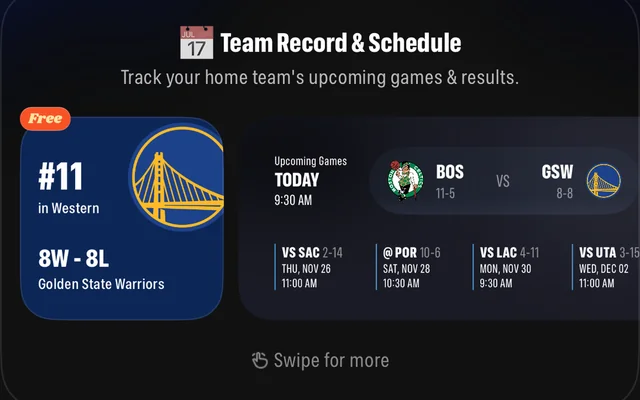
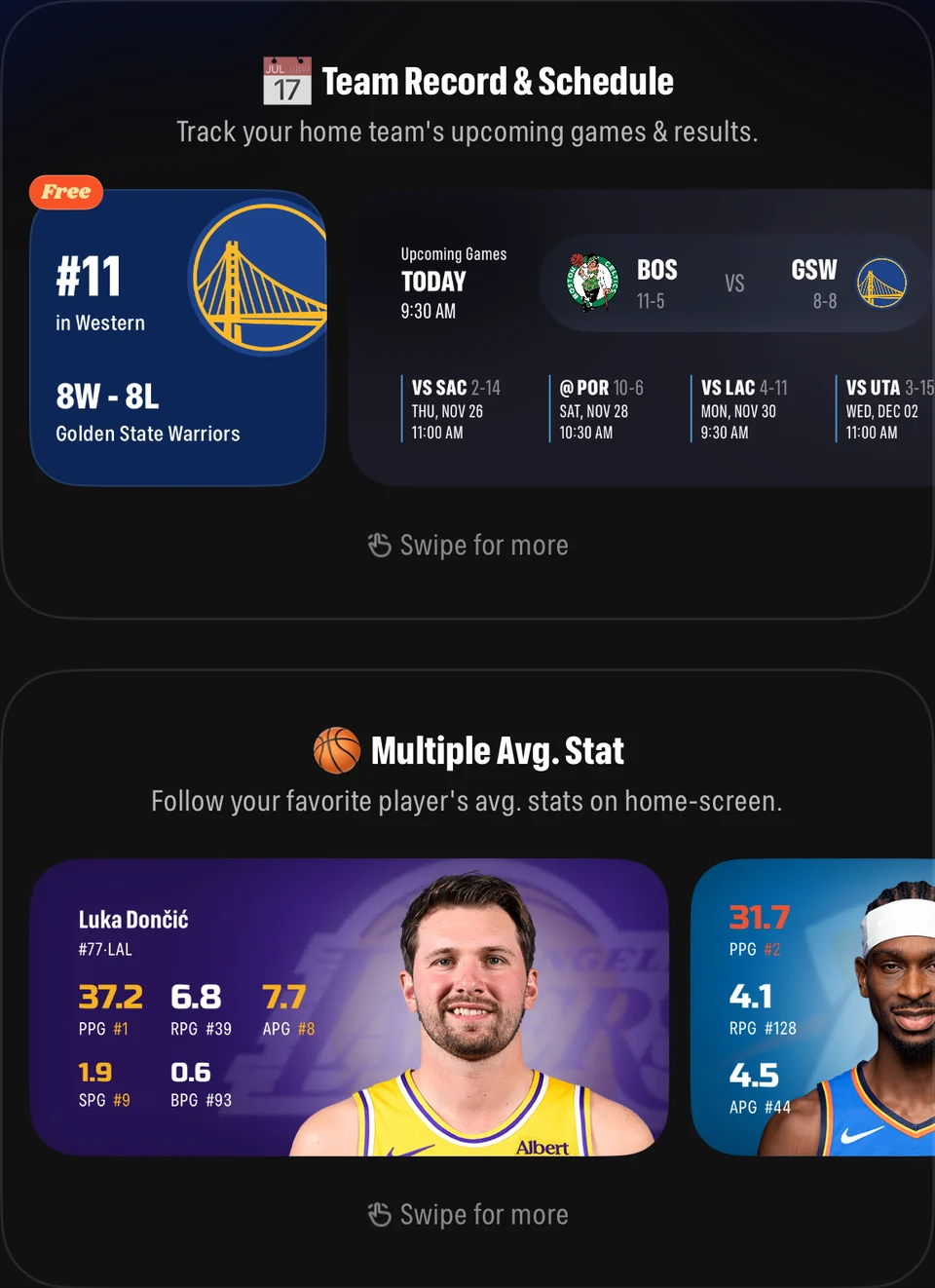
A widget occupies a chosen place on a supported surface, such as your Home Screen or Lock Screen. Its layout and content come from the app. A basketball app might provide player averages, standings, or upcoming games.
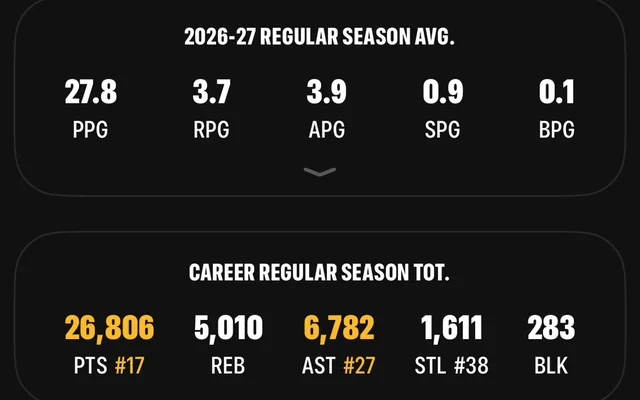
The useful question is: “What do I want to check several times a day?” If your answer is your favorite player's averages, a compact statistics widget may be a better fit than an event banner. If your answer is the next tip-off, look for a schedule layout.
Widgets should not be treated as guaranteed play-by-play feeds. Their refresh behavior has system constraints. A panel that is useful for an upcoming schedule may be a poor way to judge the latest possession.
What a Live Activity does
A Live Activity presents an ongoing event's changing state. Apple's documentation describes system surfaces that can display this information, including the Lock Screen and the Dynamic Island on supported devices. Which surfaces you actually see depends on your hardware, software, and the app's implementation.
For basketball, this can make the current score easier to follow while you use your phone for other tasks. The app must support the feature and provide updates. Do not infer its exact update speed, auto-start behavior, or supported game coverage from the phrase “Live Activities” alone.
Choose by the question you need answered
| Your question | A useful starting point |
|---|---|
| What are this player's season averages? | Player statistics widget |
| When does my team play next? | Schedule widget |
| How is this game progressing? | Live Activity, if supported |
| Why did the score change? | Open the game's detailed view |
Neither feature is a video broadcast. A score display can help you follow a game, but it does not provide viewing rights or replace a streaming subscription.
Check permissions and expectations
If a Live Activity does not appear, first confirm that the app supports it for the event you selected. Check its help instructions and any relevant Live Activities settings in iOS. Follow the app's actual start procedure rather than assuming it starts automatically for every favorite team.
If a widget is showing different information, check its configuration separately. Choosing a team inside an app does not guarantee that every existing widget changes to that team. Widget selection and event tracking may be independent controls.
When contacting support, describe which surface failed: Home Screen widget, Lock Screen widget, or Live Activity. Include whether the information is missing, delayed, or associated with the wrong game. This avoids troubleshooting the wrong feature.
Where FansDash fits
FansDash's public product description lists both basketball widgets and Live Activities. Its statistics-oriented layouts may be relevant if you want more than a single game score. Check the current app for the exact layouts, controls, and subscription requirements available to you.
Review FansDash on the App Store. Check the app for current free layouts and paid Pro options.
Sources: Apple Live Activities documentation, Apple widget guide, FansDash listing.