iPhone guides
How to Add Basketball Widgets to Your iPhone
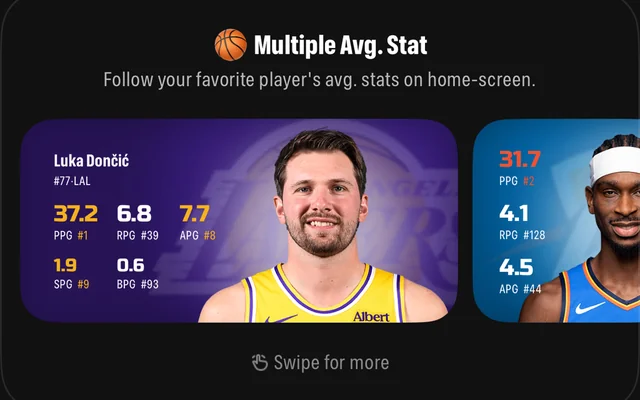
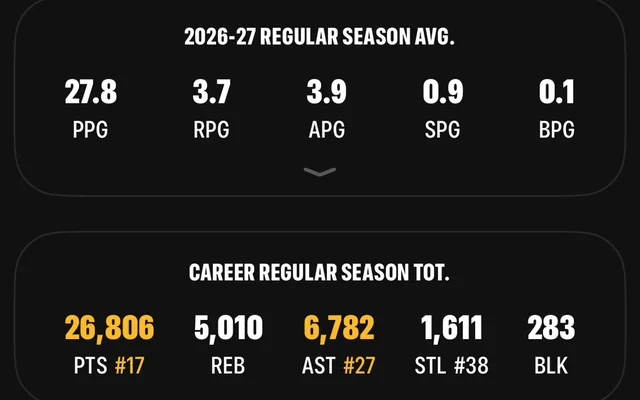
A basketball widget gives you a place to check information without repeatedly opening an app. Start by choosing what you want to see: a player's season averages, your team's schedule, or an in-progress game's score. Those are different jobs, and one widget may not cover them all.
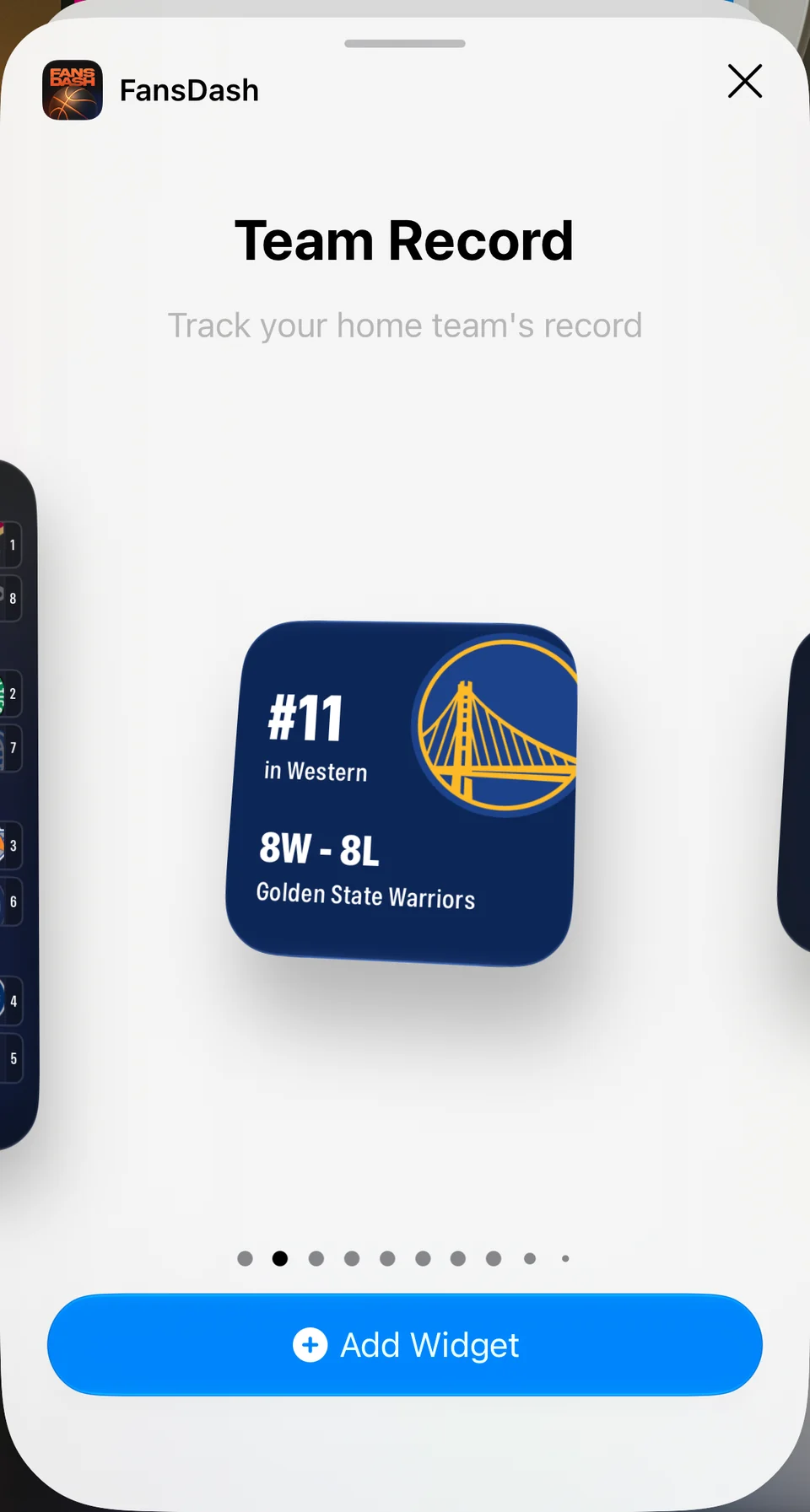
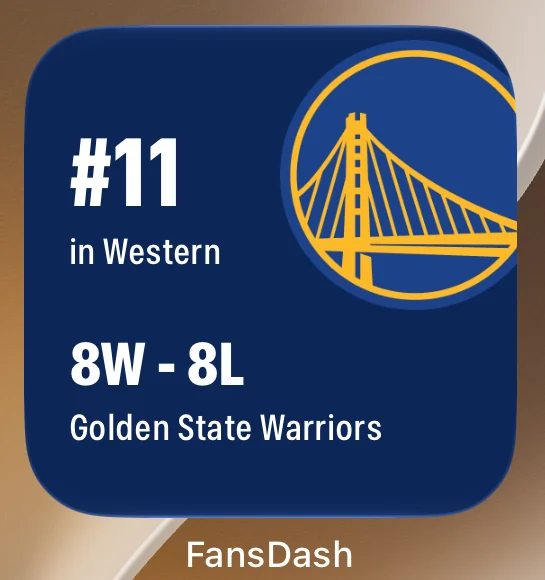
To add a Home Screen widget, install an app that offers the information you need, open it to complete any required setup, then use your iPhone's widget gallery to select its widget. FansDash offers basketball widgets. The simulator build shown here includes a free Team Record & Schedule option alongside Pro layouts. Availability and pricing may vary by app version; check the current offer in the app.
Choose the information before the layout
For a quick player check, a season-average widget may be more useful than a scoreboard. For planning your evening, a schedule may be the better choice. During a game, a Live Activity serves a different purpose from a regular widget: it presents changing event information on supported system surfaces.
Do not assume a Home Screen widget refreshes on every play. A widget's availability and behavior depend on the app, its configuration, your device, and iOS. Decide which information matters most before judging the design.
Add a Home Screen widget
Touch and hold an empty area of the Home Screen until the icons begin to move. On current iOS versions, tap Edit, then Add Widget. Find the basketball app in the gallery, choose an available size, and tap Add Widget. Finish by tapping Done.
Menu wording can vary with iOS. If the app is missing from the gallery, open it once, finish its initial setup, and check whether it supports the widget you want. Also confirm that your installed version and device meet its requirements.
If a widget offers configuration, touch and hold it and look for Edit Widget. The options are supplied by the app; a team picker or player picker will only appear if that particular widget supports it. Do not expect every layout to offer the same settings.
Add a Lock Screen widget
Unlock your iPhone, then touch and hold the Lock Screen and choose Customize. Select the Lock Screen and tap the widget area. Choose an available widget and finish with Done.
Lock Screen space is limited, so use it for information you can understand in a glance. Check the app's available Lock Screen layouts rather than expecting a full Home Screen statistics panel to fit there.
Check the result
Compare the widget with the information inside the app. Make sure you are reading the intended player, team, season, or game date. If the display looks wrong, record what differs: an old game, the wrong team, a blank panel, or a timestamp that has stopped changing. That observation is more useful than assuming every discrepancy has the same cause.
If the problem continues, share your iOS version, app version, widget type, and a screenshot with support. Avoid including account or payment details in a public screenshot.
Is FansDash a fit?
FansDash's public description lists player statistics, season leaders, standings, schedules, and Home Screen and Lock Screen widgets. If those are the information types you want to keep visible, review its current screenshots and subscription options before installing.
View FansDash on the App Store. The app is free to download; its listing states that premium widgets require a paid subscription.
Sources: Apple widget instructions, FansDash product listing.